 RedactPDFKit
PDF REDACTION
Redact a scanned PDF with OCR
Text cannot be selected in your PDF? Start with the scan itself.
Upload the clearest scan you have. OCR locates visible text so names and phrases can be matched. Review the selected areas and draw a box over text, signatures or marks that were missed.
Google-linked accounts can claim 10 trial pages once. No card required. Pro: US$15/month for 600 pages. Pro Plus: US$45/month for 5,000 pages.
What to remove
- Known names and phrases found by OCR
- Detected company, personal or contact information
- Additional regions you mark manually
What to check
- Faint text and handwritten names
- Rotated labels, stamps and page edges
- Masks touching nearby words or drawing lines
From upload to download
Use a readable scan
Choose the original scan rather than a compressed screenshot. Enter the names and phrases you need to remove.
Inspect the matches
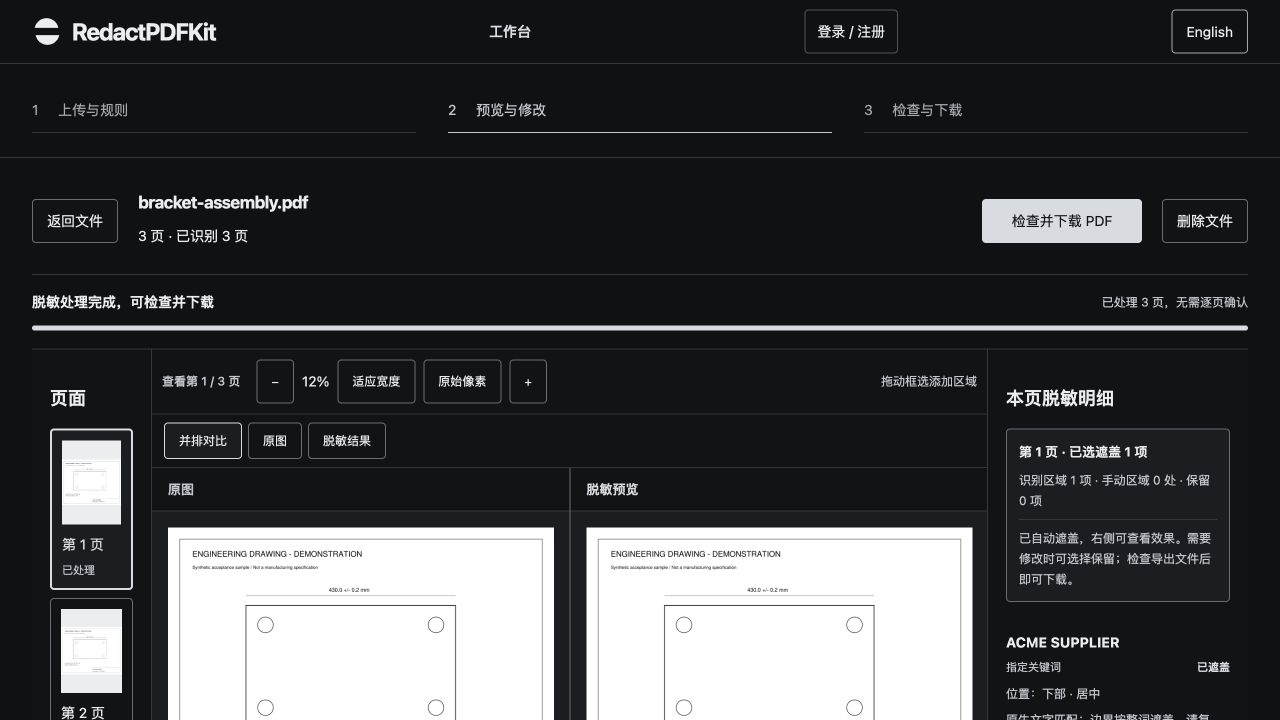
Compare the original and result. Restore incorrect selections and add manual boxes where recognition misses visible content.
Check the output
Run the text check, download the file and inspect the masked areas. A passed OCR check does not prove that every identifier was found.
Before you send the result
The exported PDF remains image-based. It does not gain a searchable OCR layer. Poor contrast, handwriting and small text may require manual masks.
Task images and results stay saved until you delete the task. There is no automatic expiry. Optional identity and logo analysis uses external services. Read the processing and privacy policy.
Questions before you start
Can it process a PDF without a text layer?
Yes. OCR reads page images to locate visible text. You can add manual regions for content that OCR misses.
Will OCR find handwriting?
Do not rely on automatic detection for handwriting. Inspect handwritten fields and add manual masks where needed.