 RedactPDFKit
For people who need visible PDF text removed, rather than temporarily covered by an annotation.
Before you start
- A copy of the original PDF.
- The exact words or areas to remove.
- A decision about whether searchable text and vectors must remain.
Try 10 pages with Google sign-in, or compare the monthly plans.
A black rectangle is not always a redaction
If you draw a shape over a name, the PDF may still contain the original text. Someone may be able to select it, search for it or remove the shape. Use a redaction operation that removes the content, or export newly rendered pages with the areas already covered.
RedactPDFKit uses the second approach: the output is a new image-based PDF. This removes the source text layer and editable objects, but also gives up searchable text and vector editing. If those features must remain, choose a PDF editor with object-level redaction instead.
Choose a method for your document
For a few words in one PDF, an existing editor with a true redaction tool may be enough. Apply its redactions and save a separate copy; do not stop after marking areas. For repeated names across files, a shared keyword list can save manual work.
If you cannot select the words, the page may be a scan. Use OCR to locate text or draw a redaction area over the visible pixels. Running OCR alone does not remove anything.
Black out names with RedactPDFKit
Open Upload & rules, enter each name or phrase on its own line, and upload the PDF. A Google-linked account can claim 10 trial pages once without a card. The whole file needs enough available pages before processing starts.
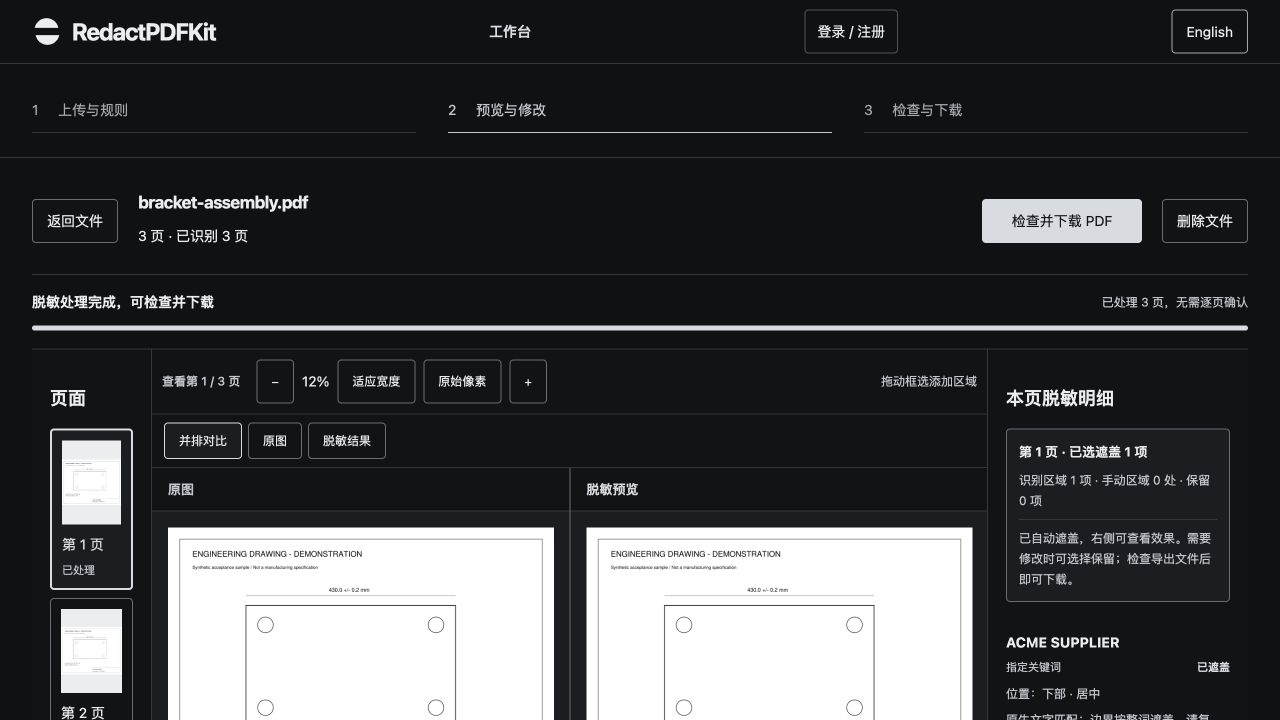
Compare the original and result. Use Keep if a selection includes text you need, and draw a manual area over missed content. In Check & download, choose black as the mask color and PDF as the output format. Run the output check and download the new file.
Check the saved file, not just the preview
Open the downloaded copy in a PDF viewer. Inspect each masked area at a readable zoom, including the edges of letters. Check that the surrounding text still makes sense. Search for the removed phrase and try copying text around the mask.
Those checks are useful but not proof of complete removal: a scanned PDF may never have had searchable text. Inspect visible pixels too. With RedactPDFKit, the OCR output check searches for selected targets; it cannot certify that every sensitive detail was found.
Use the full checklist: inspect text, images and file details.
Avoid three common mistakes
Do not blur sensitive text when you need it removed; cover the complete area. Do not assume a white mask restores the original background; it is a solid cover. Do not send the source file with the redacted version.
Before sending, check the filename as well. A supplier name or customer reference in the filename can reveal information even when every page has been redacted. Keep your source separately and send only the intended sharing copy.
Common questions
Can someone remove the black boxes?
A removable annotation can expose underlying text. RedactPDFKit exports covered page images in a new PDF, rather than placing editable rectangles over source text. Visible details missed by the masks still need review.
Can I use white instead of black?
Yes. Choose the mask color before checking and exporting. Both colors cover the selected area; white does not reconstruct the original background.
Why can I still search a name after blacking it out?
The source text may remain under an annotation, or another occurrence may be unmasked. Check the saved PDF and all occurrences, including other pages. A scan also needs a visual check.
Does this keep selectable text?
No. RedactPDFKit creates an image-based PDF. Choose a different workflow when searchable text or editable vector objects are required.
Prepare your redacted copy
Choose your rules, review the result and download a checked file.
Open Upload & rules